
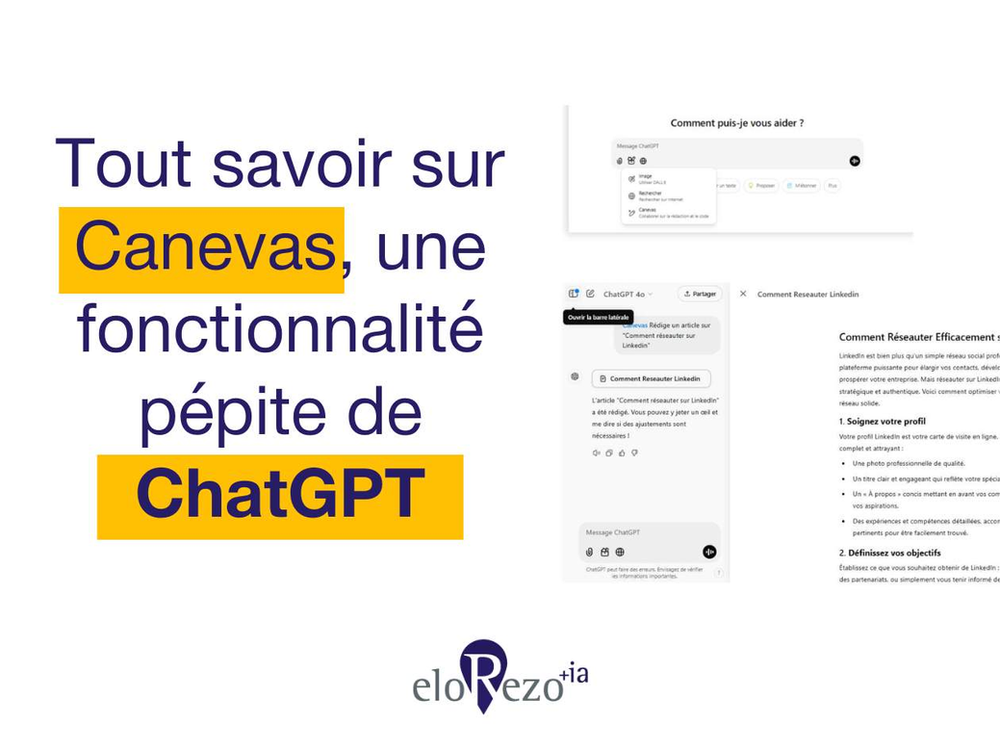
Do you often use ChatGPT to create draft texts? Articles, posts, scripts... is everything going on? ✍️ On ChatGPT, the first response generated does not often meet our expectations, except with a well-worked prompt. And before, editing a text generated by ChatGPT, it wasn't always simple. Between copy-paste, loss of modifications and back and forth... it was sometimes discouraging. Then a new feature came up: Canvas. With it, you can customize your text directly, without leaving ChatGPT.
Canvas, what exactly is this?
Canvas or Canvas in English is a built-in editor in ChatGPT which offers you an intelligent work table. It comes in the form of a document on the left, with the conversation on the right. You can do it. create, edit, correct and structure your texts or codes with the help of AI. This becomes very practical for projects of creation of content on ChatGPT a little long or complex. AI can also comment on your writings and make targeted suggestions, such as a real editorial assistant. 🤓 .
When to use Canvas mode?
You can activate Canvas as soon as you feel that a simple prompt is no longer enough. For example, for write a blog article, structure a training plan, write a product sheet, develop a video script, or even to improve a commercial text. As soon as your project expands, Canvas becomes a super ally.
What's the point in practice?
Canvas is particularly useful for:
- Write a blog article, sales page or LinkedIn post step by step.
- Build a Content plan or a editorial calendar with the help of AI.
- Working on a video script or Presentation, itating with intelligent suggestions. Write and test code (Yes, the devs also find their happiness there!).
The benefits of Canvas
A real gain of time
With Canvas, you no longer need to juggle between your text editor, ChatGPT, and your rereading tool. Everything is in the same place, integrated, fluid.
More fluidity in iteration
Instead of restarting 10 different prompts to refine a text, you can modify with the water, by clicking directly on what you want to change.
An improvement in the final quality
With revision tools, linguistic refinement and suggestions from AI, you get a clearer, more structured text, and better suited to your target.
How to activate Canvas?
It's ultra simple. Here are the 3 steps to start:
- Log in to your ChatGPT account.
- Click on the second icon below the text entry box (this one with a toolbox).
- Select "Canvas" to open a blank space or start with a quick one.
And here you are, in Canvas. One click and you are in a new workspace. On the left, your content; on the right, your conversation with AI. You can then interact with ChatGPT while keeping an overall view of your document. 📝
The key features of Canvas
If you wish explode your content with AI, explore these features of Canvas:
1. Creation of structured documents
You can ask ChatGPT to create an article, script, email, plan... and it automatically opens a document in Canvas. You can then:
- Reread, correct, delete or reformulate each part.
- Iterate by section rather than start from scratch every time.
2. Suggestions in context
By selecting a sentence or paragraph, you can ask ChatGPT to:
- Reword
- Shortening
- Develop
- Propose several variants
You can also use the integrated editing tools: Italic, fat, list, etc.
It's much more fluid than copy and paste from a publisher to ChatGPT and then come back.
3.Practical shortcuts to edit your content
What's great with Canvas is that it doesn't just give you a block of generic text. It accompanies you to make it clearer, more suitable, more striking - in short, more pro.
Here are some superpowers you'll love to use:
Add emojis to boost
Want to give your content some life? No need to copy and paste emojis from another site. Canvas offers you to insert directly to bring a visual or emotional touch to your sentences.
Automatic language painting
Canvas rereads your text as a spell corrector... but better. It helps you:
- Correcting mistakes
- Improving fluidity
- Make your sentences more natural.
Adjust the reading level to your target
This is one of the smartest features: you can adapt your text to level of understanding of your audience.
Need a simple tone for beginners? Canvas reformulates everything with more accessible words. Need a more professional or academic style? He's passing the speed.
Example: "Explain this paragraph to me as if I was 12 years old" - you get a clear version.
Shortening or developing content
Too long, not dense enough, not clear enough? ✂️ A simple click allows you to:
- Either of reduce a paragraph too talkative
- Either of develop It's too short an idea.
Suggestions for improvement
Canvas isn't just obeying your orders. It can also analyze your text for itself and propose to you:
- More Natural Turns
- Clearer reformulations
- Comments to improve the overall impact
4.Safeguard and history of changes
Are you afraid to lose a good version of a text? No problem. Canvas includes a history of changes. You can monitoring the evolution your document and return to an earlier version,
👉 Example: Do you test several headlines? Compare them side by side before validating the most impacting.
5.Comparison of the various changes
Easily view the additions and deletions you have made on different versions.
Integrated backup and collaboration
Canvas records your work automatically. So you can leave the page, come back later, everything will be intact. And icing on the cake: you can share the link with your colleagues or clients, who will be able to comment or change in turn.
Conclusion
Canvas is a feature that changes how we create text content on ChatGPT. He's thought of accelerate and improve editorial and creative work. With him, we can write faster, more neatly, adapt our texts to different audiences and give a real personal and professional touch to your content.